Last manipulation
These commands allow you to manipulate shoe lasts and objects on them.
B_FlattenLast
Flattens the last and adds its boundary to the document as a curve. This command is intended to technically flatten a last, similar to what a pattern engineer would do. To do so, you will need:
- A last geometry that must be oriented along the Y-axis with its heel point at the origin.
- A last bottom matching the last.
- Last center line.
- Heel center line.
Once you run the command, you will choose whether the last is right or left, and then a dialog will appear. Within the dialog, you can select the various lines and curves required for flattening. Once the "Preview" button is pressed, a flattening will be generated. You can tweak several parameters to achieve a better result.
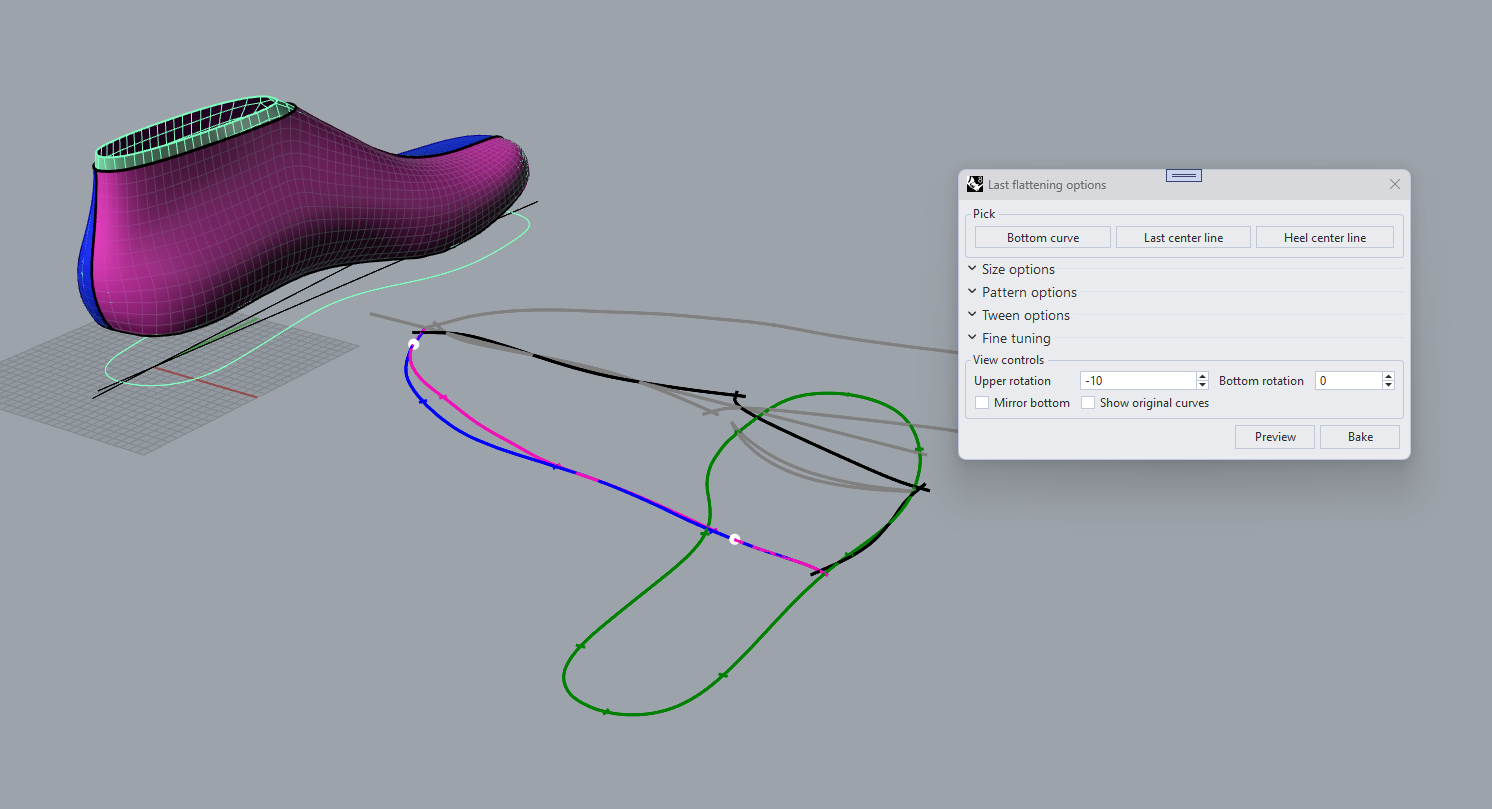
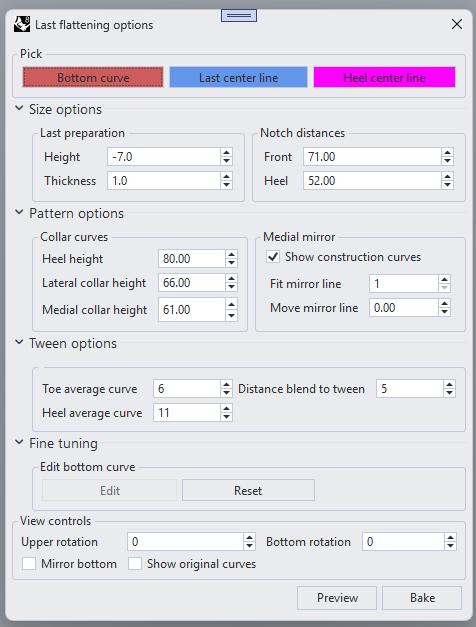
Parameters
- Size options
- Height: Height of the last cut, starting from the top of the bounding box.
- Thickness: Amount of offset applied to the last before flattening (e.g., thickness of your pull-over material).
- Front notch: Distance on the feather edge for the front notch.
- Heel notch: Distance on the feather edge for the heel notch.
- Pattern options
- Collar curves: Heights for the heel position and lateral/medial for the collar curve.
- Medial mirror: Information for mirroring the medial side over.
- Tween options: These options allow you to control the interpolation between lateral and medial sides.
- Fine tuning: Allows you to manipulate the simulated bottom to obtain better flattening results.
B_ChangeLast
Moves planar curves from one flattened last to another. Taking the source flattened last curve and the destination curve as input, the tool generates two meshes with the same topology for the source and target last curves, respectively. It also creates new curves on the target mesh matching the position of the original curves on the source mesh.
Parameters
- Precision: The level of accuracy desired for matching curves.
- CopyCurves: Set to true if you want to keep the original curves.
B_GradeGeometry
This command allows you to generate a graded last from a given mesh, SubD, surface, or Brep. Starting from a last, the user must select a line from the heel to the top point as a reference for last length measurement. The last ball is then computed automatically. The initial size is estimated based on the length, while a target size must be provided so the command can compute the appropriate scale and produce the new geometry. It is also possible to specify target measurements directly, such as length and perimeter, to compute the scale. Other objects can also be scaled along with the last.
Parameters
- Size style: The preferred grading system, such as UK, France, or Mondo points.
- Current size: The actual size to be considered. It is automatically estimated by approximating the length with the nearest size in the selected system, but the user can change it, and the grading table will be recomputed accordingly.
- Grade to: The target size.
- Max iterations: Maximum number of iterations performed by the algorithm to find the correct scales along the X and Y axes to reach the target length and ball.
- Objects to scale: Select objects to scale with the last.
- Target length: The target length of the last.
- Target ball length: The target ball length (perimeter) of the last.

B_GradeMultiple
You may want to generate an entire set of graded lasts based on a specific grading table. Use this command to either create a custom grading table or use an existing one.
The parameters in the override section of the window are essential for creating a new table.

Parameters
- Min size, Max size: Table size range.
- Size increment: Numeric distance between consecutive sizes.
- Length increment: The difference in length between two consecutive sizes.
- Ball increment: The difference in ball width between two consecutive sizes.
Additionally, you can opt for a different sample size than the one automatically recognized from the last length. A new layer is generated for each graded object added to the document. The color of each layer corresponds to the size, as illustrated below.
