Introduction
This manual will cover the functions needed in Jevero to build a shoe pattern quickly and efficiently. It is intended to be supported by a course that explains the functions in more detail.
Shoe pattern engineering in Jevero consists of 3 main phases: design, part management, and grading.
In this manual we are going to cover those 3 phases to take the user from a scan to a graded file and see how to export different file configurations.
Beginner's tips
- All Jevero commands in Rhinoceros are preceded by “J_”, which will make the search easier in the help panel, giving a complete list of all the commands.
- Every entity in Jevero can be tweaked by using keyboard shortcuts that can be found between brackets “()” in order to increase speed and mobility.
- Base curve/Baseline: it is the core element of a shoe model in Jevero. It refers to the lines you build that control all the subsequent entities you create.
- Use the “Help” panel to find quick gifs and explanations of the commands, both of Rhinoceros and Jevero
Jevero Interface:

Rhino 101 for pattern engineers
In order to properly use Jevero, a basic understanding of Rhino is needed. As the plug-in integrates deeply into the host application, you should have at least a basic understanding of 2D curve creation and navigation. In this section, we will cover some of these topics in the context of Jevero.
UI breakdown
In this section, we will detail each component of the Rhino UI with an emphasis on features specific to pattern engineering. As we will mostly focus on curve drawing in 2D, most of the complex features of Rhino will be ignored.
Info
Jevero is a 2D tool, all the tools will assume that you are working on the XY plane. Normally this means that you are working in the Top view. To maximize the view, just double-click the viewport name and it will display the image shown above.

Toolbars
Each command available in the Rhino UI is stored inside of a toolbar. These are shelves that you can use to access all the commands. A normal toolbar looks something like this:

In some versions of Rhino, Jevero toolbars may not load automatically.
This can be easily solved by going into the Options panel under the toolbar tab and either importing
the toolbar file or enabling it.
Tip
Rhino has a special toolbar called Pop-up that appears when the middle mouse button (the scroll wheel on most mice) is clicked. This pop-up toolbar can be customized with your most commonly used commands.
Custom toolbars can be created to fit your workflow. These are fairly advanced uses that you can learn once you have the basics nailed down.
Panels
In Rhino, panels are specialized interface windows that provide access to tools, settings, and information used in modeling and scene management. They help you control aspects of your model and environment without cluttering the main viewport. Commonly used panels in Rhino include:
-
Properties Panel, displays information about selected objects. It lets you change the object's layer, material, display settings, etc. Includes object type-specific properties (e.g., for curves, surfaces, dimensions).
-
Layers Panel, manages layers, which control object organization, visibility, color, linetypes, etc. Allows grouping and sorting of objects for cleaner workflow.
-
Display Panel, controls how objects are shown in different viewports. Adjusts display modes like Wireframe, Shaded, Rendered, Ghosted, etc.
- Help Panel, provides documentation or descriptions for commands, tools, and options.

You can access the most commonly used panels from the menu, using the Panel entry. There
you will find Rhino's standard panels. If you right-click on the tab of a panel, you will
be presented with a list of available panels. There you will also find Jevero's panels.
You can easily move, dock, and undock panels by grabbing the tab with the name or icon in Rhino. You can also lock the panels using the contextual menu displayed when you click the cog icon.
Command line
The most important part of Rhino is the command line; it is a useful source of information and the way most options are entered. As a new user, you should start to feel comfortable with how the command line works.
- You can search for commands by typing into the command line, and it will list all entries containing the words you are searching for.
- When running a command, options are displayed that you can interact with.
- Commands and tools will log messages on the command bar when something goes wrong or if messages need to be displayed.
Modeling aids
Modeling aids are tools and settings that assist with precision, alignment, and efficient creation of geometry. They enhance your modeling workflow by providing visual and interactive guidance for tasks like drawing, snapping, aligning, and transforming objects.
You can usually find them at the bottom of the main window, in the toolbar shown in the picture.

- Grid Snap, the grid is a visible background guide for scale and alignment. You can customize the
grid size, spacing, and visibility (
Document Properties > Grid). This option forces your cursor to snap to grid points for consistent placement. - Ortho, restricts cursor movement to orthogonal directions (e.g., horizontal and vertical). Useful for drawing clean, straight lines.
- Planar, keeps all points you pick on the same construction plane even if object snaps suggest otherwise. Useful for maintaining consistent geometry on a 2D plane.
- Osnap, helps you snap to specific parts of objects like:
- End (endpoint)
- Mid (midpoint)
- Cen (center)
- Int (intersection)
- Perp (perpendicular)
- Tan (tangent)
- Quad, Near, etc.
- SmartTrack, shows temporary reference lines and points from previous snaps or points. For pattern engineering, this is particularly annoying; we suggest keeping it disabled.
- Gumball, an on-screen manipulator for moving, scaling, and rotating objects directly. Toggle it with the Gumball button or Gumball command. Offers a fast, visual way to transform geometry precisely.
View manipulation in Rhino is quite easy: right-clicking (in the Top view) pans the view,
and scrolling the mouse wheel zooms in and out. Zooming can also be achieved by holding Ctrl
and right-clicking.
If you want to focus on a single object, you can use the _Zoom _Selected command or the short
alias ZS from the command line. Jevero also offers a UI shortcut for centering the zoom on
the entire document.
Layer and visibility management
In Rhino, each object belongs to a layer and one layer only. These layers help you structure the document in an easily maintainable manner. Layers can be nested and have properties that are automatically transferred to the objects contained within them.

When adding objects via commands, they will be added to the current layer. The current
layer is highlighted in bold in the UI. You can change the current layer by clicking in the
UI in the right position or via the right-click menu in the Layers panel.
Layers (and objects) can be hidden and locked. These operations greatly help maintain a clean model; you can hide objects that are not needed for your current action, and lock objects that are needed but should not be modified.
-
Hide/Showhelp you manage visual clutter. These states can be triggered per object or per layer. If a layer is hidden, all of its child layers will also be hidden. You can never hide the current layer. -
Lock/Unlockkeep the objects visible in the document, but they cannot be selected (though they can still be snapped to). This is useful when you need to refer to an existing object without accidentally modifying it.
Curve creation
Creating lines and curves in Rhino is quite easy. There are a number of different options
when creating new curves. Jevero offers basic features in the J_BaseCurveCreate
 command. This command allows you to draw an interpolated
curve on the XY plane, which is what you will do most of the time when creating patterns.
command. This command allows you to draw an interpolated
curve on the XY plane, which is what you will do most of the time when creating patterns.
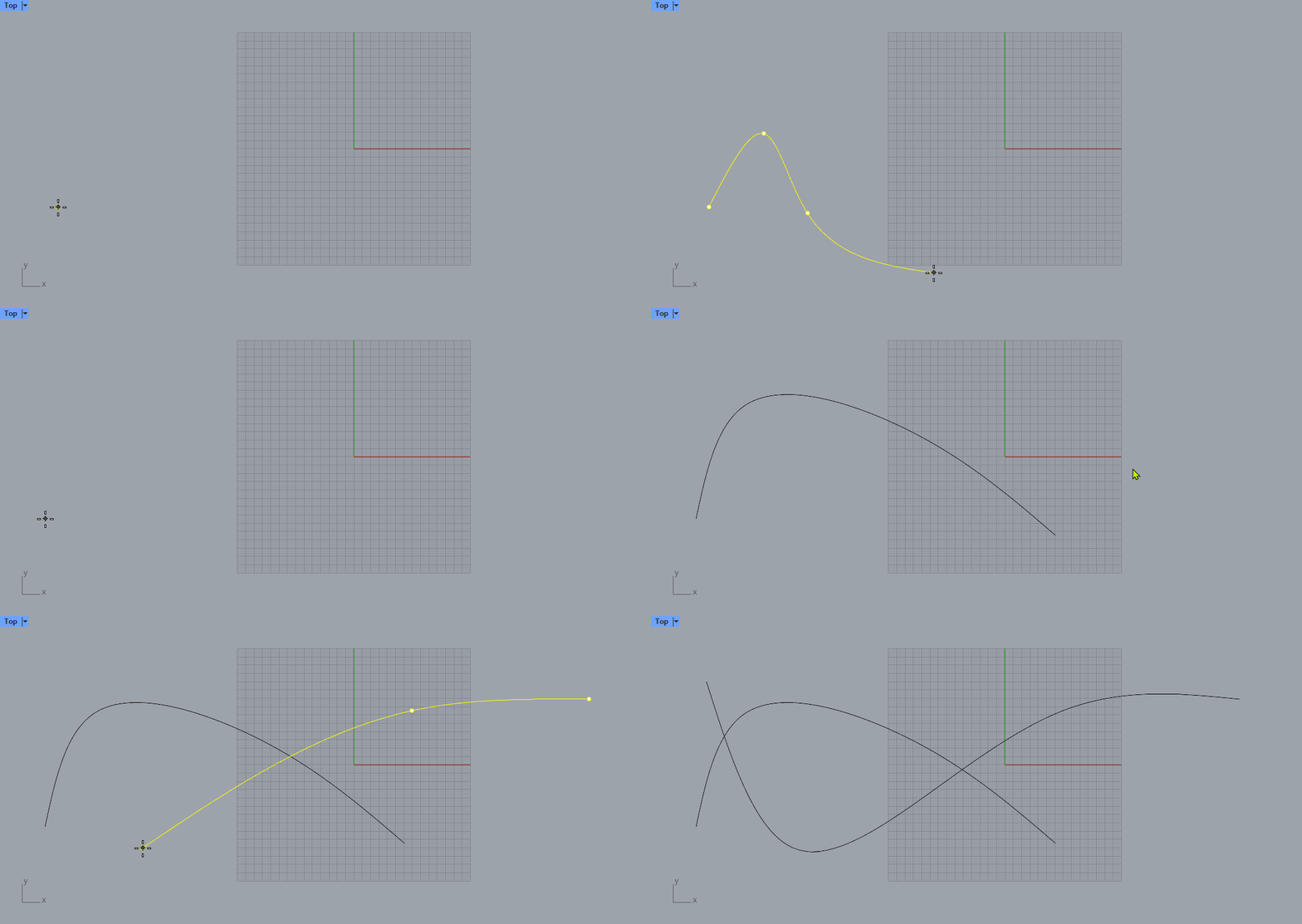
Rhino generally allows you to create curves in two principal styles:
- Control point curves, where the user defines where the control points should lie. This style of curve creation requires some practice to master.
- Interpolated curves, where the user defines where the curve should flow. This forces the curve to pass through the points that have been specified.
There is no single best way to create curves; each style has its advantages. Jevero offers a quick tool that is very simple and works for most pattern engineering workflows. For more advanced workflows, refer to the Rhino commands.
More curve topics will be discussed in the chapter related to the base shell extraction.
Data quality
